Here are some examples of things you can make with Curves.
## Highlighter
Use Curves to quickly highlight important elements of your composition without
leaving Final Cut Pro.
A highlighter is just a colored rectangle with the blend mode set to "Multiply"
and the scale parameter animated. Here's how to create it from scratch:
>>> Update the Curves app.
Make sure Curves is [updated](/updating) to the latest version. You need Curves
1.2 or newer to adjust the animation anchor point.
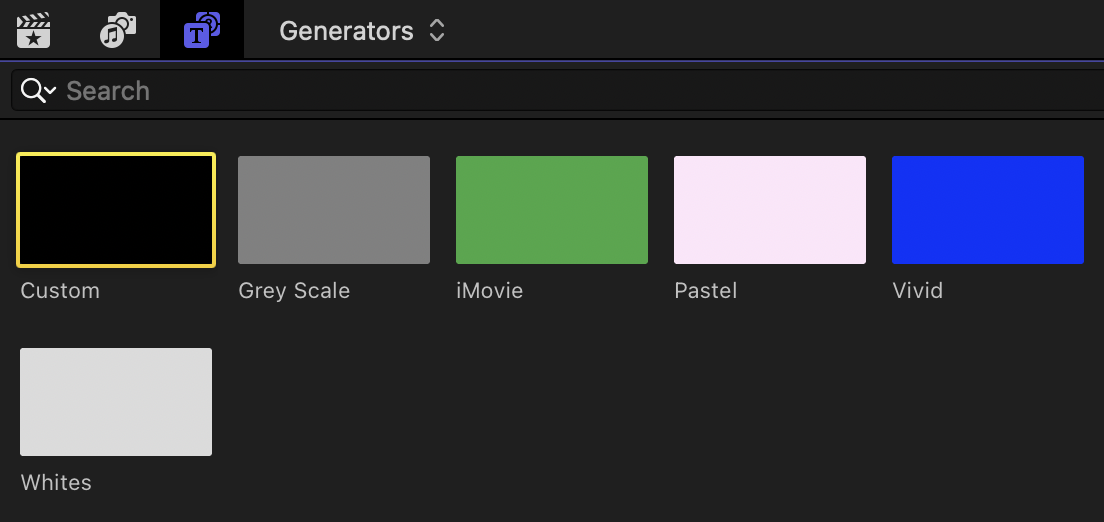
>>> Add a "Custom" color generator to your timeline.
The rectangle should cover the entire screen.
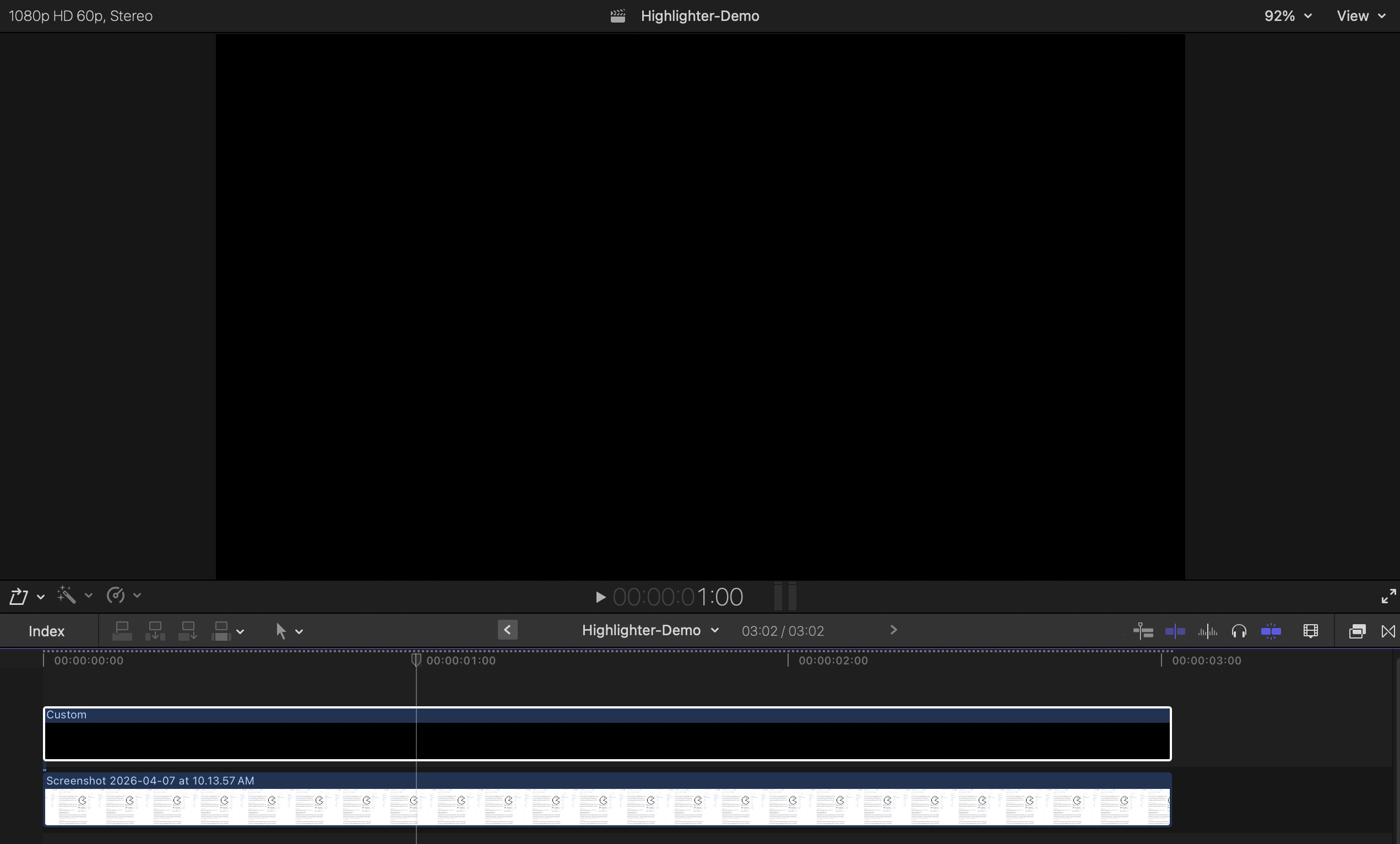
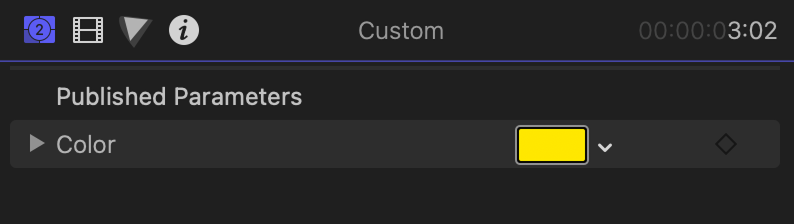
>>> Change the color and set the compositing blend mode to "Multiply"
Adjust the color in the generator options:
And set the blend mode in the video inspector to "Multiply":
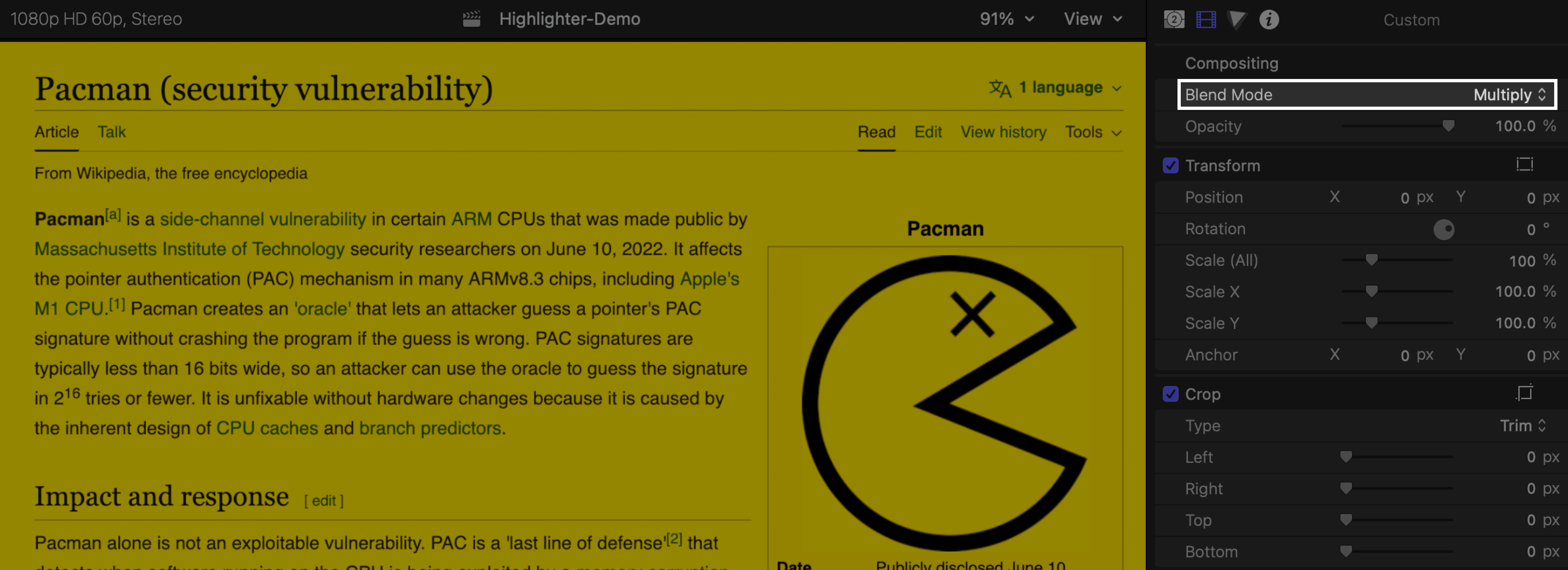
You should start to see the highlighter effect!
>>> Add the Curves effect
Add Curves directly to the color solid (no need for a compound clip since it's
already the same size as your project). Set the scale mode to "Flexible", then
move and scale the highlight roughly where you want it.
Make sure to scale and position it using Curves and not Final Cut's builtin
transform.
>>> Adjust the anchor point
Hold the Option (⌥) key and click and drag the control point to the top left
corner of the highlight. It should snap in place. This sets the anchor point,
which is where the animations will play from.
>>> Keyframe the scale parameter
Keyframe the scale parameter to animate the highlighter. Use the curve editor
to adjust the animation smoothness. Make sure the scale mode is set to
"flexible" so you can independently scale X and Y.
>>>
 The rectangle should cover the entire screen.
 >>> Change the color and set the compositing blend mode to "Multiply"
Adjust the color in the generator options:
>>> Change the color and set the compositing blend mode to "Multiply"
Adjust the color in the generator options:
 And set the blend mode in the video inspector to "Multiply":
 You should start to see the highlighter effect!
>>> Add the Curves effect
Add Curves directly to the color solid (no need for a compound clip since it's
already the same size as your project). Set the scale mode to "Flexible", then
move and scale the highlight roughly where you want it.
Make sure to scale and position it using Curves and not Final Cut's builtin
transform.
You should start to see the highlighter effect!
>>> Add the Curves effect
Add Curves directly to the color solid (no need for a compound clip since it's
already the same size as your project). Set the scale mode to "Flexible", then
move and scale the highlight roughly where you want it.
Make sure to scale and position it using Curves and not Final Cut's builtin
transform.
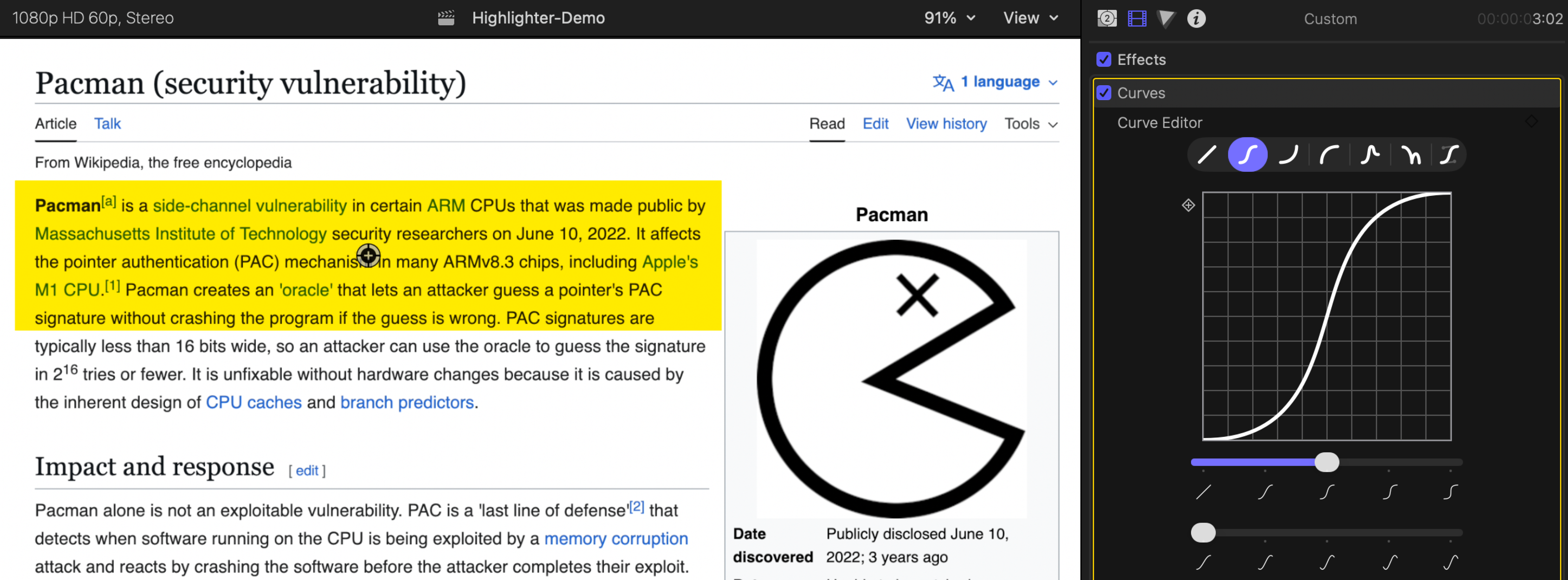 >>> Adjust the anchor point
Hold the Option (⌥) key and click and drag the control point to the top left
corner of the highlight. It should snap in place. This sets the anchor point,
which is where the animations will play from.
>>> Keyframe the scale parameter
Keyframe the scale parameter to animate the highlighter. Use the curve editor
to adjust the animation smoothness. Make sure the scale mode is set to
"flexible" so you can independently scale X and Y.
>>>
>>> Adjust the anchor point
Hold the Option (⌥) key and click and drag the control point to the top left
corner of the highlight. It should snap in place. This sets the anchor point,
which is where the animations will play from.
>>> Keyframe the scale parameter
Keyframe the scale parameter to animate the highlighter. Use the curve editor
to adjust the animation smoothness. Make sure the scale mode is set to
"flexible" so you can independently scale X and Y.
>>>