
Animation Curves
While keyframes define the start and end points of an animation, the animation curve (or "interpolation curve") defines how a clip moves from the start to the end. You may have also heard this referred to as the amount of "easing".
Final Cut gives you just two premade interpolation modes - "linear" or "smooth":
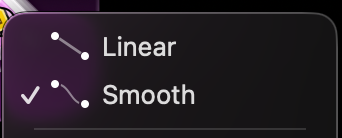
These two modes offer little customization, and not all parameters even support them both. For example, the scale parameter is limited to linear interpolation; you can't make it smooth at all!
Animation in Curves
Curves uses fully continuous sliders instead of rigid premade modes, giving you almost unlimited ways to customize your animations. Giving you as much control as possible over the animation curve was so important to me when designing Curves that I named the entire plugin after it!
With Curves, controlling the amount of easing is as simple as adjusting a slider. For example, here's the "smooth" curve with different amounts of easing applied:
Scale, rotation, and translation keyframes all follow this curve, meaning everything stays exactly in sync.
Use the shape selector to pick from one of 7 curve shapes.

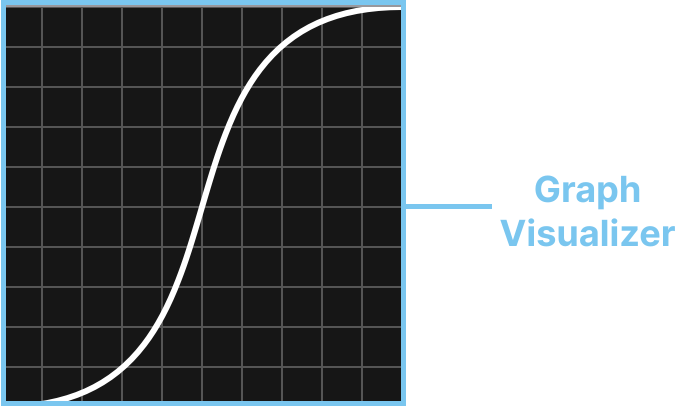
Use the graph view to visualize how your animation will move over time.
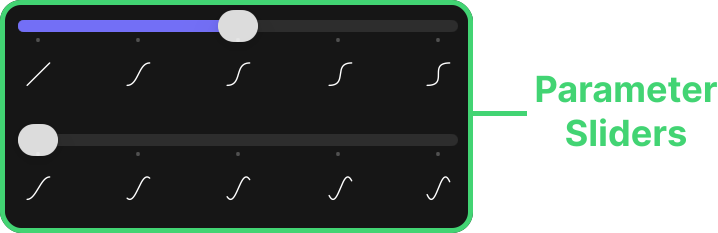
Use the parameter settings to dial in the exact curve you want.
You can even keyframe the interpolation curve itself, allowing your clip to change the interpolation curve without having to cut the clip and reapply the Curves plugin.
What is a curve?
An interpolation curve defines the path from the start keyframe to the end keyframe. In Curves, we represent these with graphs. The left side of the graph represents the start keyframe, and the right side represents the end keyframe.
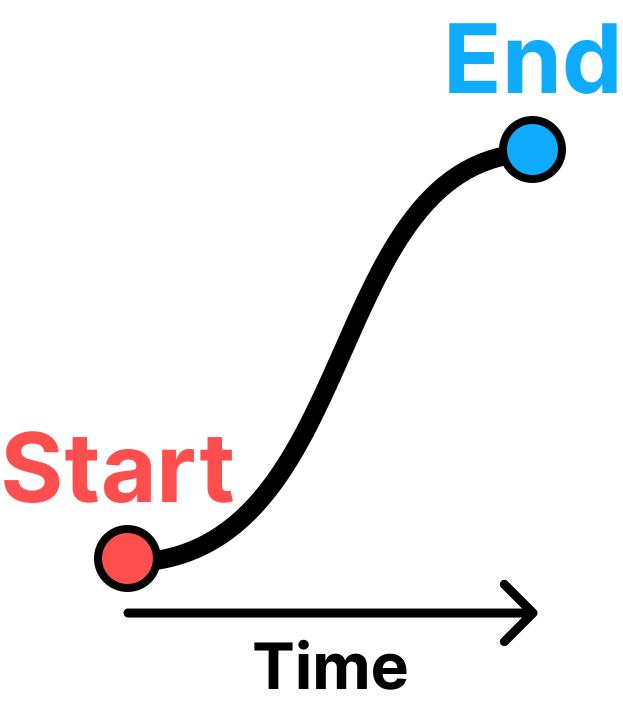
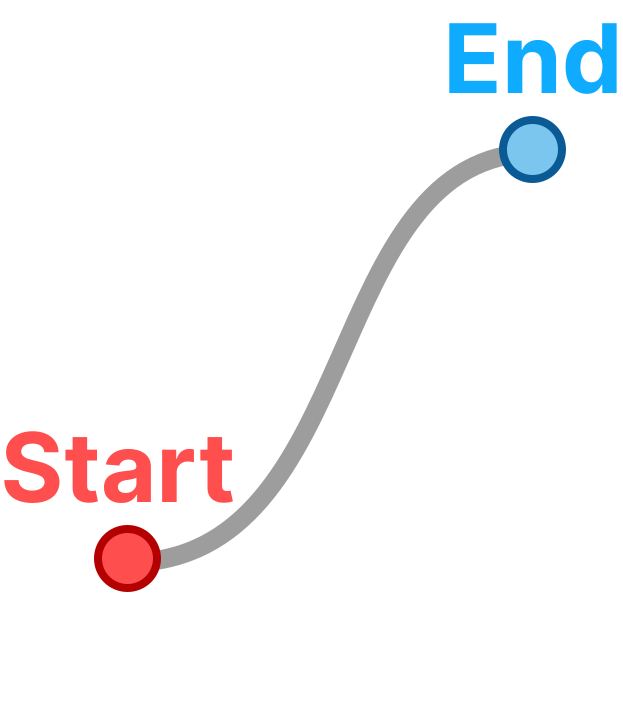
Time moves from left to right. As we move further along the curve, we get closer to the end position and further from the start position. At a given point in time, the height of the curve tells us how close we are to either point.
Working with the Curve Editor
Click to select a curve shape.
Drag a slider and watch the graph update in realtime.
Even complicated parameters can be quickly adjusted.
Curve Shapes
There are 7 curve shapes to select from, each with their own parameters.


Linear
The simplest kind of animation is Linear. It just moves from point A to B in a straight line. There are no parameters to adjust.
Smooth
Smooth gives you a symmetric curve with a customizable amount of easing and backing. You may have heard this referred to as "ease both" in other animation systems.
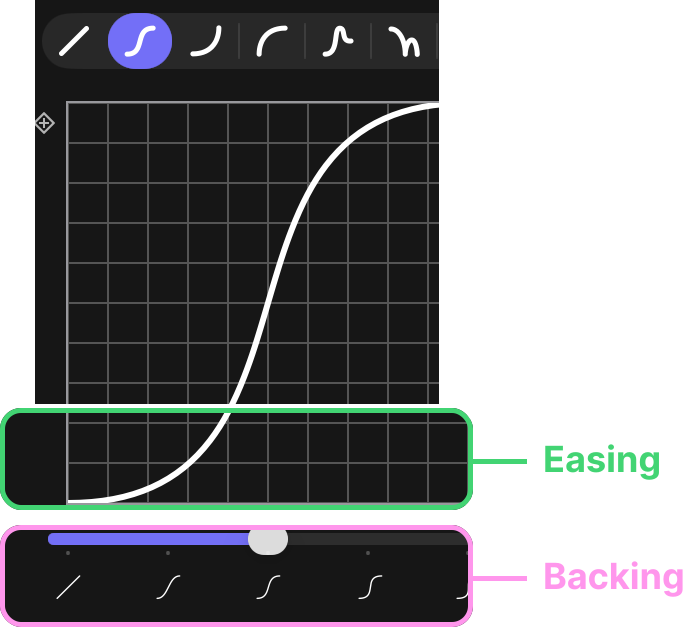
Easing refers to how "sharp" the curve is. No easing is the same as linear, and lots of easing is a very quick jump from A to B in the middle of the two keyframes. See the animation at the top of the page for a comparison of the easing modes of the smooth curve.
Backing slides the clip back before and after the animation. It gives it a cartoonish "bouncy" feeling:
Acceleration / Deceleration
Acceleration and Deceleration offer continuously increasing and decreasing speed curves respectively. You may have heard these referred to as "ease in" or "ease out". Just like Smooth, you can control the easing and backing.
Overshoot
Overshoot models springy / elastic things.
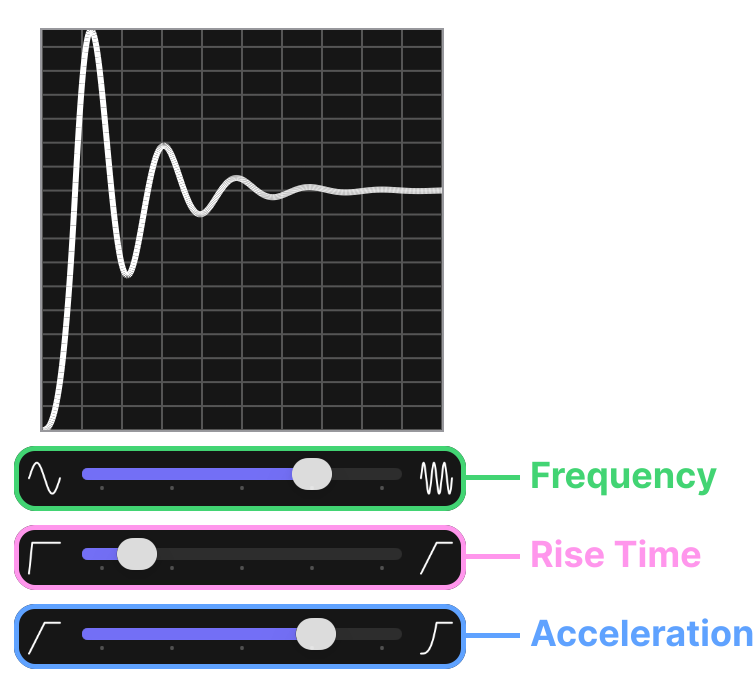
Frequency lets you control the oscillation frequency as the overshoot settles to a steady state. Rise Time controls how long the curve rises before oscillating and decaying. This can be used to slow down the animation to make it more subtle. Acceleration controls how sharp the rising curve is. Larger values give the animation more power.
Bounce
Bounce models bouncy things.
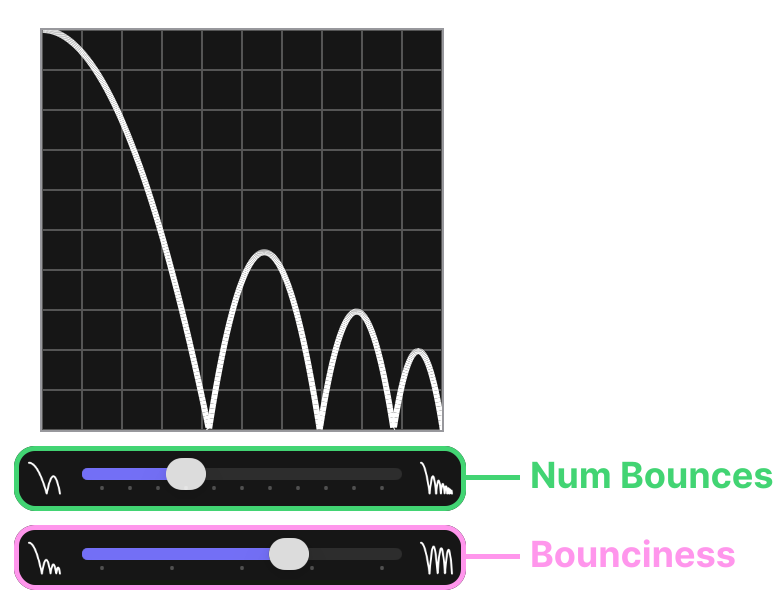
Num Bounces lets you specify how many bounces should occur. Bounciness controls the coefficient of restitution- eg. how bouncy is this object?
The bounce curve is drawn moving downwards rather than upwards like the others because it looked better this way.
Custom
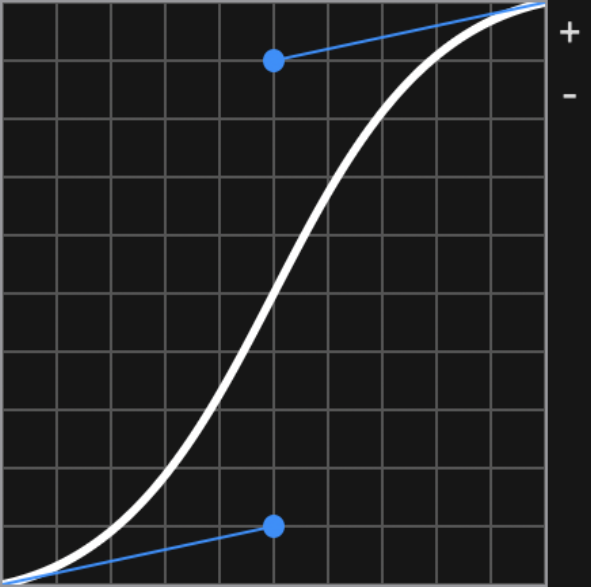
Custom gives you Bezier handles letting you fully control the shape of the curve. Click and drag a handle to move it around. Use the zoom buttons (+/-) to zoom in and out.
Keyframing the Curve Shape
You can use keyframes to change which curve is applied at different points in your clip. This lets you change the animation curve without needing to cut the clip and reapply Curves.
Curve shape keyframes work by adding keyframes to the "Curve Editor" itself. Use the add keyframe button in the upper left corner of the curve editor to add your first curve shape keyframe:
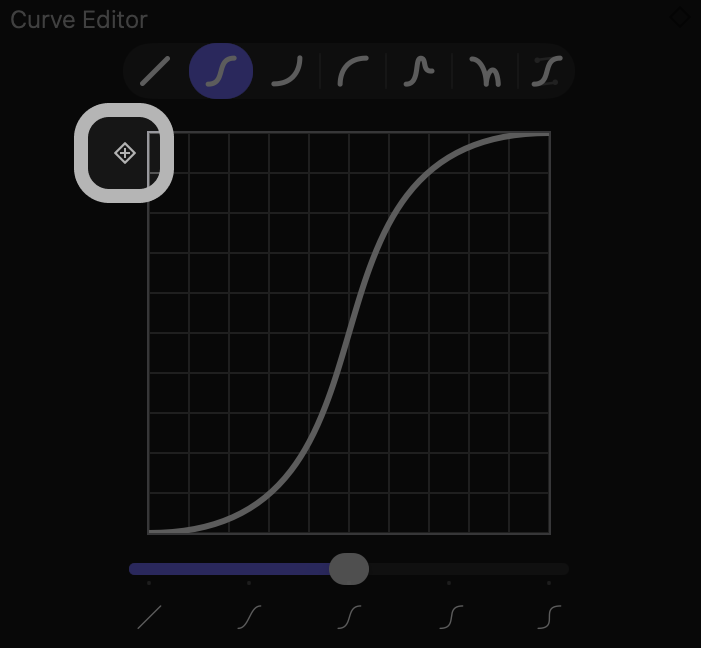
Now, move forward or backward and make a change to the curve. A new curve shape keyframe will be created. Curve shape keyframes are "hold" keyframes, which means they hold their value constant until the next keyframe. Between curve shape keyframes the value of the most recent keyframe will be held constant.
You will notice keyframe navigation controls appear in the upper right of the Curve Editor. Use these to move to the previous or next curve keyframes.
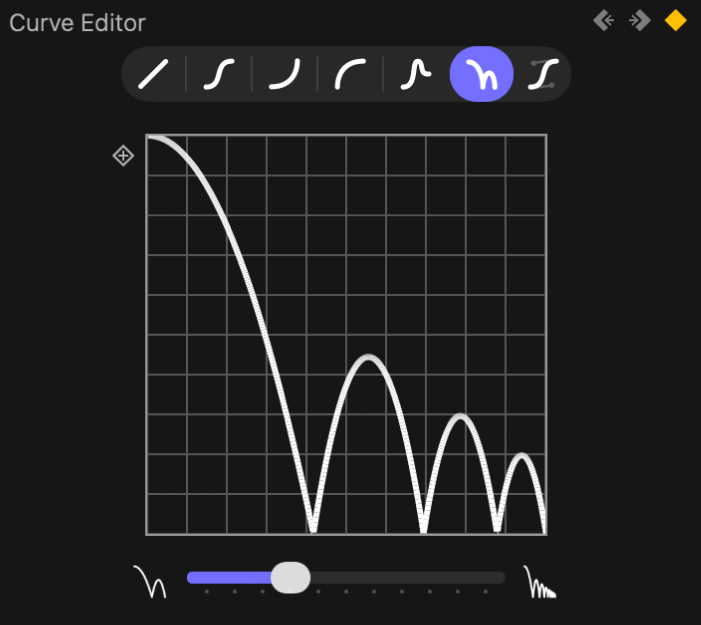
I recommend only adding curve keyframes in the same frame as position, rotation, or scale keyframes; if you place a curve shape keyframe in the middle of a path, your clip will likely jump around when the curve changes.