#

![](static/TextHeader.png)

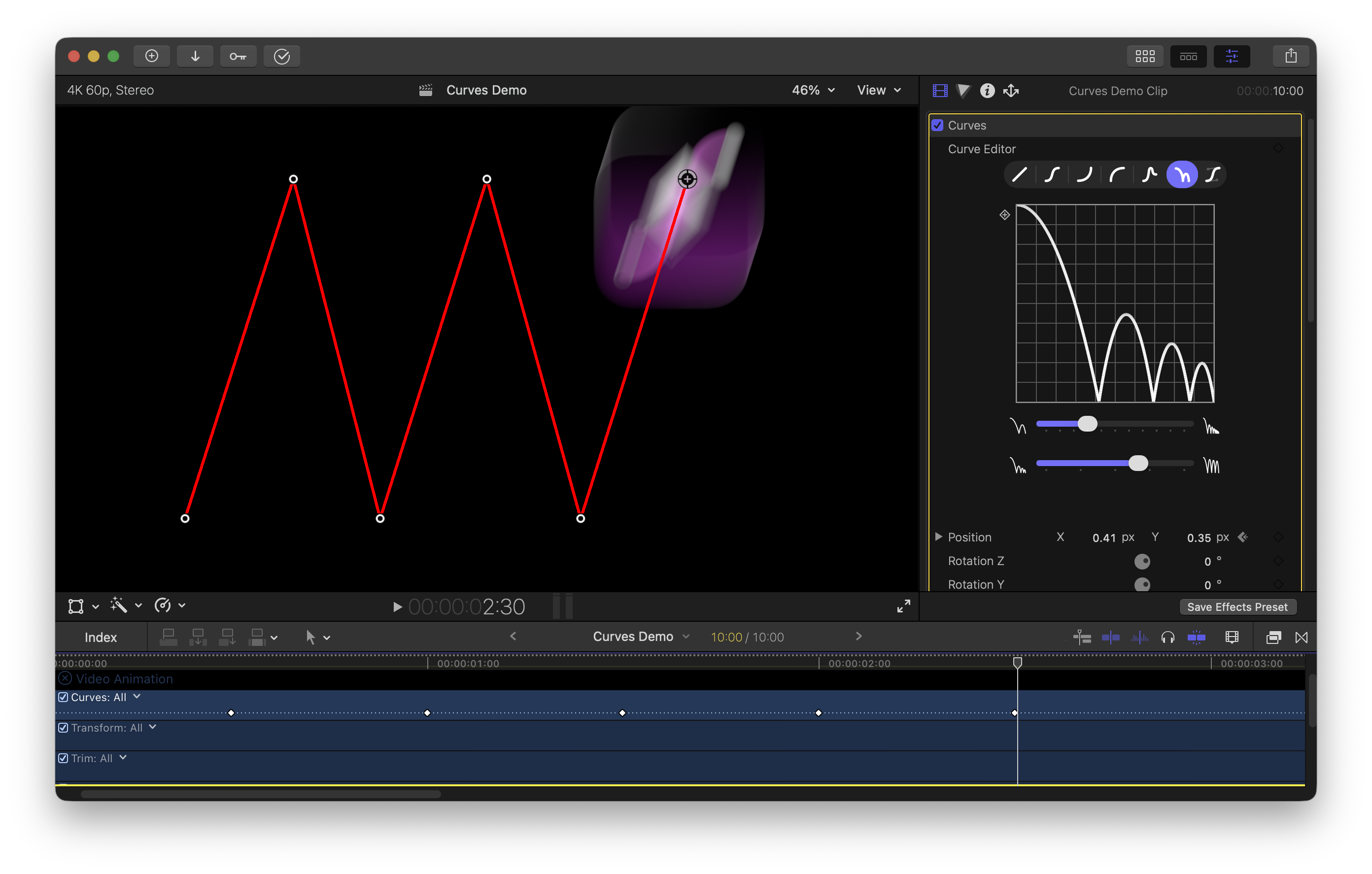
*Curves for Final Cut* brings powerful animation tools right into the Final Cut
Pro timeline.

<img src="/static/main-intro.png"/>
</p>

## "What can I use this for?"

A few examples of what Curves can do. Learn how to create these effects using
Curves in the [Tutorials](/tutorials/overview) section.

<div class="card-container">
    <a href="/tutorials/bouncing_icon" class="group card no-link">
        <div class="relative shrink-0 overflow-hidden bg-card-image-bg md:w-5/12 pb-9/16 md:pb-0 border-b md:border-b-0 md:border-r border-card-image-inner-border">
            <video class="absolute object-cover w-full h-full transition-transform duration-300 ease-out group-hover:scale-105" src="/static/examples/bouncing_icon.mp4" autoplay loop muted playsinline>
        </div>
        <div class="p-card-padding">
            <span class="inline-block w-12 h-12 text-card-kicker-text"><svg xmlns="http://www.w3.org/2000/svg" viewBox="0 0 24 24" fill="currentColor" class="icon icon-tabler icons-tabler-filled icon-tabler-bounce-right"><path stroke="none" d="M0 0h24v24H0z" fill="none" /><path d="M14.143 11.486a1 1 0 0 1 1.714 1.028c-1.502 2.505 -2.41 4.89 -2.87 7.65c-.16 .956 -1.448 1.15 -1.881 .283c-2.06 -4.12 -3.858 -4.976 -6.79 -3.998a1 1 0 1 1 -.632 -1.898c3.2 -1.067 5.656 -.373 7.803 2.623l.091 .13l.011 -.04c.522 -1.828 1.267 -3.55 2.273 -5.3l.28 -.478z" /><path d="M18 4a3 3 0 1 0 0 6a3 3 0 0 0 0 -6" /></svg>
</span>
            <div class="mt-2 text-card-title font-card-title leading-card-title text-card-title-text md:text-card-title-md">Bouncing Icon</div>
            <div class="line-clamp-4"><p class="mt-card-description-margin-top text-card-description-text">Learn how to make your first Curves animation by moving an image around the screen.</p></div>
        </div>
    </a>
</div>

<div class="card-container">
    <a href="/tutorials/highlighter" class="group card no-link">
        <div class="relative shrink-0 overflow-hidden bg-card-image-bg md:w-5/12 pb-9/16 md:pb-0 border-b md:border-b-0 md:border-r border-card-image-inner-border">
            <video class="absolute object-cover w-full h-full transition-transform duration-300 ease-out group-hover:scale-105" src="/static/examples/highlighter.mp4" autoplay loop muted playsinline>
        </div>
        <div class="p-card-padding">
            <span class="inline-block w-12 h-12 text-card-kicker-text"><svg xmlns="http://www.w3.org/2000/svg" viewBox="0 0 24 24" fill="none" stroke="currentColor" stroke-width="2" stroke-linecap="round" stroke-linejoin="round" class="lucide lucide-highlighter-icon lucide-highlighter"><path d="m9 11-6 6v3h9l3-3"/><path d="m22 12-4.6 4.6a2 2 0 0 1-2.8 0l-5.2-5.2a2 2 0 0 1 0-2.8L14 4"/></svg>

</span>
            <div class="mt-2 text-card-title font-card-title leading-card-title text-card-title-text md:text-card-title-md">Highlighter</div>
            <div class="line-clamp-4"><p class="mt-card-description-margin-top text-card-description-text">Draw an animated highlighter to emphasize parts of your composition.</p></div>
        </div>
    </a>
</div>

<div class="card-container">
    <a href="/tutorials/zoom" class="group card no-link">
        <div class="relative shrink-0 overflow-hidden bg-card-image-bg md:w-5/12 pb-9/16 md:pb-0 border-b md:border-b-0 md:border-r border-card-image-inner-border">
            <video class="absolute object-cover w-full h-full transition-transform duration-300 ease-out group-hover:scale-105" src="/static/examples/zoompan.mp4" autoplay loop muted playsinline>
        </div>
        <div class="p-card-padding">
            <span class="inline-block w-12 h-12 text-card-kicker-text"><svg xmlns="http://www.w3.org/2000/svg" viewBox="0 0 24 24" fill="none" stroke="currentColor" stroke-width="2" stroke-linecap="round" stroke-linejoin="round" class="lucide lucide-fullscreen-icon lucide-fullscreen"><path d="M3 7V5a2 2 0 0 1 2-2h2"/><path d="M17 3h2a2 2 0 0 1 2 2v2"/><path d="M21 17v2a2 2 0 0 1-2 2h-2"/><path d="M7 21H5a2 2 0 0 1-2-2v-2"/><rect width="10" height="8" x="7" y="8" rx="1"/></svg>
</span>
            <div class="mt-2 text-card-title font-card-title leading-card-title text-card-title-text md:text-card-title-md">Zoom and Pan</div>
            <div class="line-clamp-4"><p class="mt-card-description-margin-top text-card-description-text">Zoom and pan around your clip with customized easing curves and motion blur.</p></div>
        </div>
    </a>
</div>

<div class="card-container">
    <a href="/tutorials/3dcam" class="group card no-link">
        <div class="relative shrink-0 overflow-hidden bg-card-image-bg md:w-5/12 pb-9/16 md:pb-0 border-b md:border-b-0 md:border-r border-card-image-inner-border">
            <video class="absolute object-cover w-full h-full transition-transform duration-300 ease-out group-hover:scale-105" src="/static/examples/3dcam.mp4" autoplay loop muted playsinline>
        </div>
        <div class="p-card-padding">
            <span class="inline-block w-12 h-12 text-card-kicker-text"><svg xmlns="http://www.w3.org/2000/svg" viewBox="0 0 24 24" fill="none" stroke="currentColor" stroke-width="2" stroke-linecap="round" stroke-linejoin="round" class="lucide lucide-rotate3d-icon lucide-rotate-3d"><path d="M16.466 7.5C15.643 4.237 13.952 2 12 2 9.239 2 7 6.477 7 12s2.239 10 5 10c.342 0 .677-.069 1-.2"/><path d="m15.194 13.707 3.814 1.86-1.86 3.814"/><path d="M19 15.57c-1.804.885-4.274 1.43-7 1.43-5.523 0-10-2.239-10-5s4.477-5 10-5c4.838 0 8.873 1.718 9.8 4"/></svg>
</span>
            <div class="mt-2 text-card-title font-card-title leading-card-title text-card-title-text md:text-card-title-md">3D Camera</div>
            <div class="line-clamp-4"><p class="mt-card-description-margin-top text-card-description-text">Tilt and rotate your scene in 3D to simulate a 3D camera.</p></div>
        </div>
    </a>
</div>

## Features

- **On-screen animation path controls**: click and drag to move a clip, see
  your animation path and keyframes on-screen, and click on a keyframe to move to
  it in the timeline.

- **Animation curve editor**: choose from one of seven animation shapes
  (linear, smooth, accelerate, decelerate, overshoot, bounce, or custom), adjust
  easing, backing, and more with simple sliders, and view your interpolation
  curve in the inspector.

- **Integration with Final Cut's keyframe system**: add unlimited position,
  rotation, and scale keyframes.

## Usage

Adjust the animation curve using simple sliders:

<video autoplay loop muted playsinline>
   <source src="/static/blur/blur_demo.mp4"/>
</video>
<p/>

Add keyframes for position, rotation, and scale, and customize the animation
curve using one of seven parametric curve families to get the exact animation
you want.


<img class="relight" src="/static/interpolation/modes_light.svg"/>
<img class="redark" src="/static/interpolation/modes_dark.svg"/>
<p/>

Customizing the amount of easing is as simple as adjusting a slider. No Bezier
handles to deal with (unless you want them). Curves keeps everything perfectly
aligned for you by default.

<video autoplay loop muted playsinline>
   <source src="/static/interpolation/smooth_comparison.mp4"/>
</video>
<p/>

Use the on-screen controls to create animation paths, line up keyframes, or
click on a keyframe to jump to it in the timeline.

<video autoplay loop muted playsinline>
   <source src="/static/keyframes/scrubbing.mp4"/>
</video>
<p/>

Move keyframes around using Final Cut's keyframe system.

<video autoplay loop muted playsinline>
   <source src="/static/keyframes/sliding_keyframes.mp4"/>
</video>
<p/>
