# :icon-package-dependencies: Updating
Whenever a Curves update is released, there are a few things to do in order to
have it recognized in Final Cut Pro.
!!!
If you have background rendering enabled, Final Cut Pro may not re-render clips
that were rendered with an older version of Curves. To fix this, update the
Curves app (following the steps on this page), then slightly adjust any Curves
parameter on any affected clips- for example, increase the number of blur
samples by 1. This will force Final Cut to re-render your clip with the updated
version of Curves.
!!!
>>> Update the *Curves* app using the [the Mac App Store](https://apps.apple.com/us/app/curves-for-final-cut/id6760507188).
Curves updates are distributed from the Mac App store.
Updates are designed to be backwards compatible, but you may want to back up a
copy of your current Curves app just to be safe. See [Back up Final Cut
Pro](https://support.apple.com/en-us/119609) for instructions on how to back up
an app.
>>> Upgrade the Final Cut effect files from the *Curves* app
You should see an "Effect out of date" message:
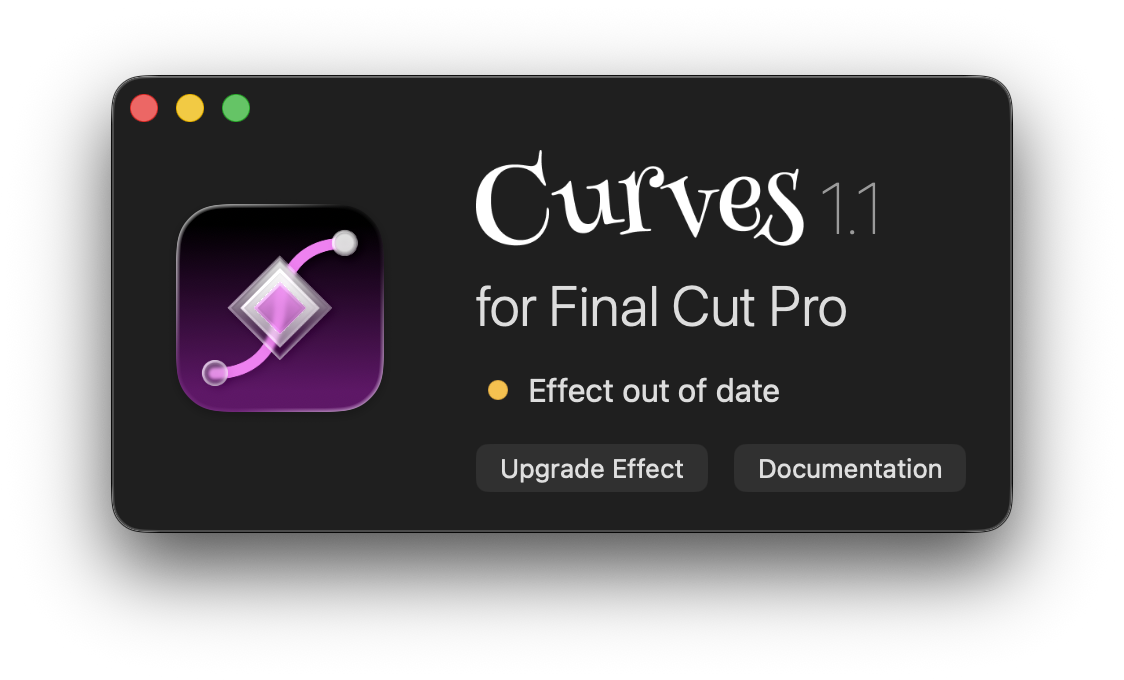
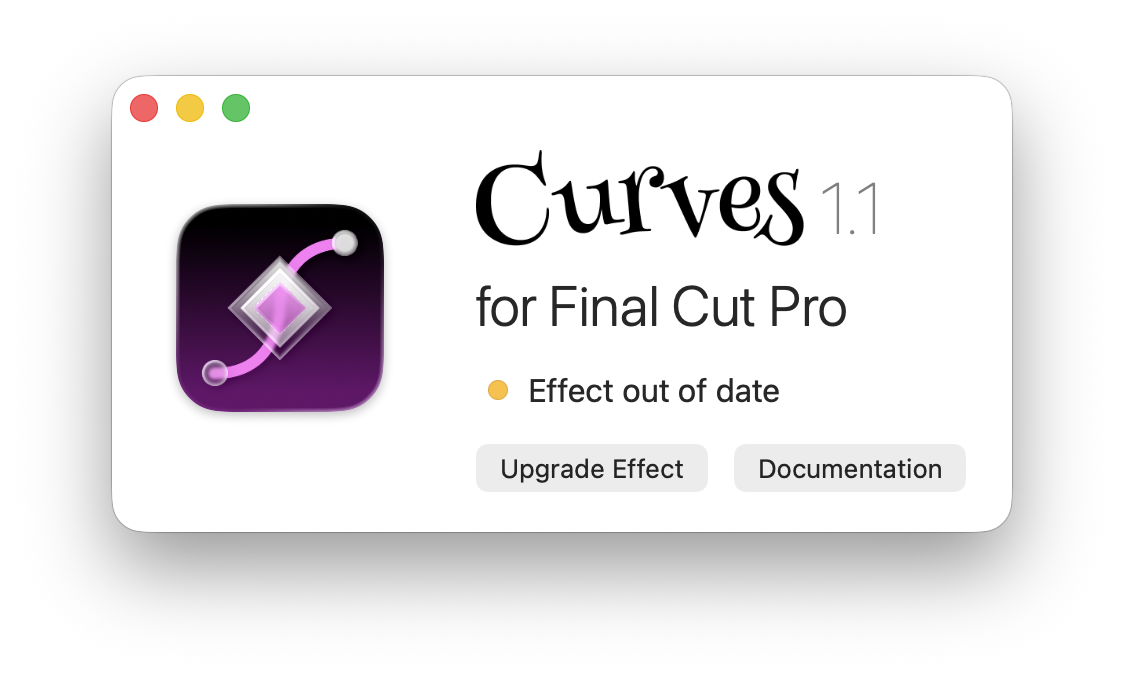 Click "Upgrade Effect" to update the Curves effect template.
>>> Quit Curves
Click "Upgrade Effect" to update the Curves effect template.
>>> Quit Curves
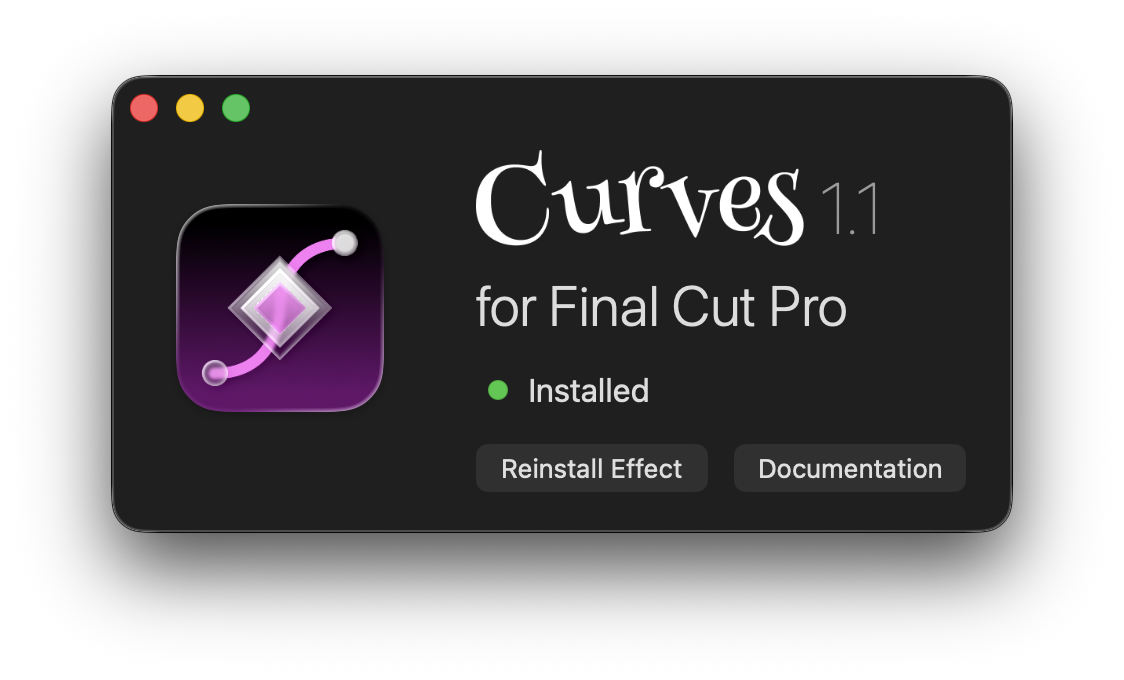
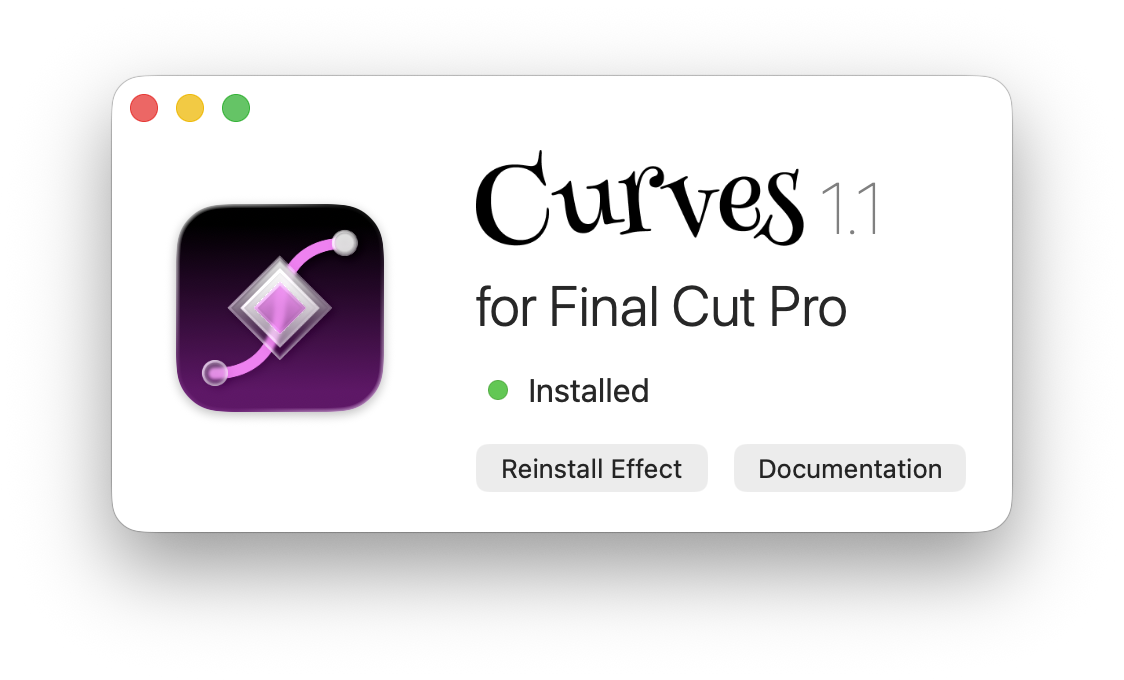 Once the effect files are updated, you can quit the Curves app.
>>> Restart Final Cut Pro
Restarting Final Cut allows it to detect the changes to Curves.
>>> All set!
You should now see all the new features on clips you've already applied Curves
to, as well as any clips you add Curves to in the future.
>>>
If you encounter any issues during the update process, send us a
[Support](/help/support) email.
Once the effect files are updated, you can quit the Curves app.
>>> Restart Final Cut Pro
Restarting Final Cut allows it to detect the changes to Curves.
>>> All set!
You should now see all the new features on clips you've already applied Curves
to, as well as any clips you add Curves to in the future.
>>>
If you encounter any issues during the update process, send us a
[Support](/help/support) email.