# :icon-lucide-rotate-3d: 3D Camera
The "3D Camera" effect is actually just a more complicated [Zoom +
Pan](/tutorials/zoom) effect.
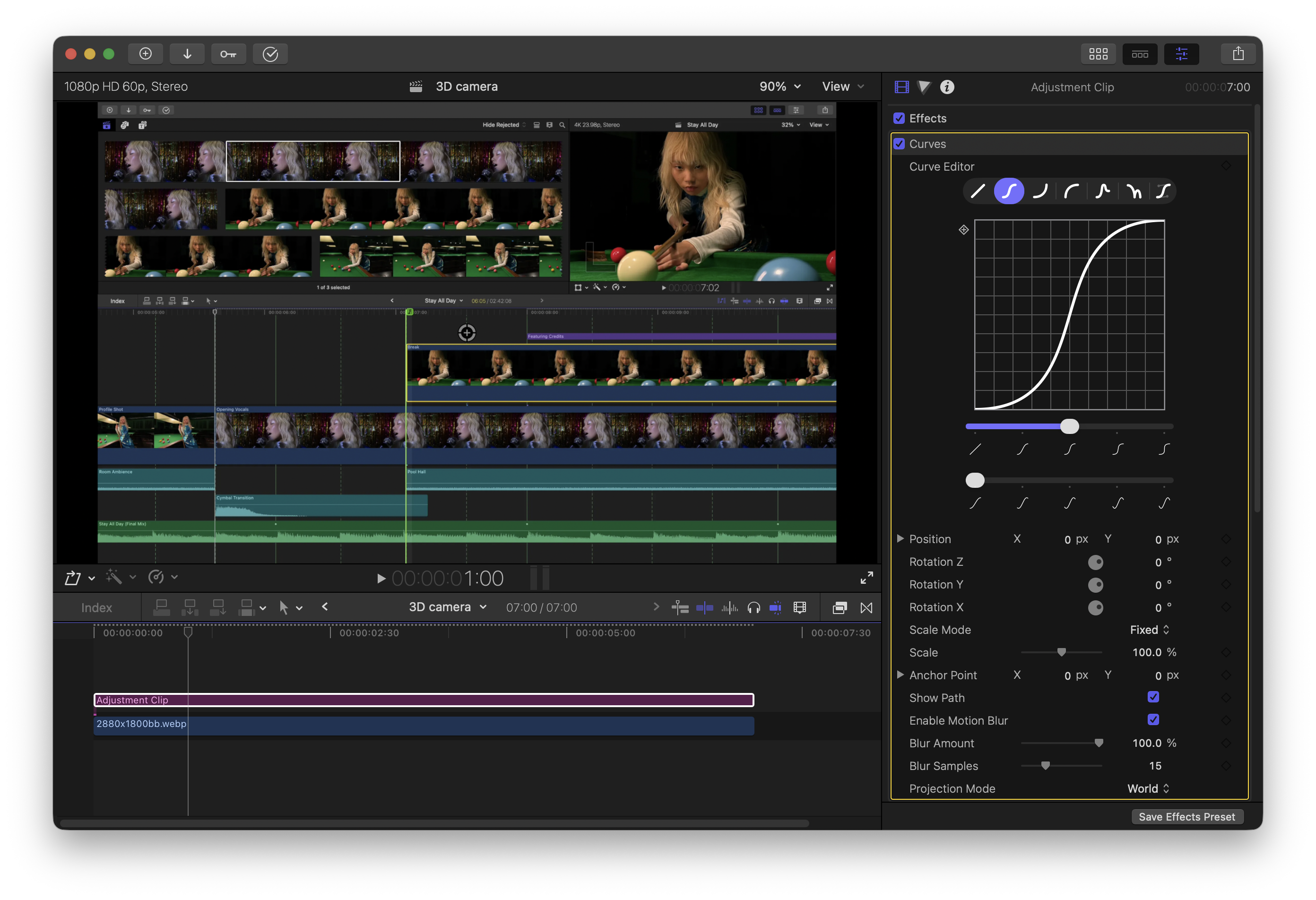
>>> Apply Curves to an Adjustment Clip
Like with zoom/ pan, we apply Curves to an adjustment clip on top of the
timeline, rather than the clip itself, to make it easy to add cuts or change
clips later on without losing the camera animations.
>>> Set Projection Mode to "World"
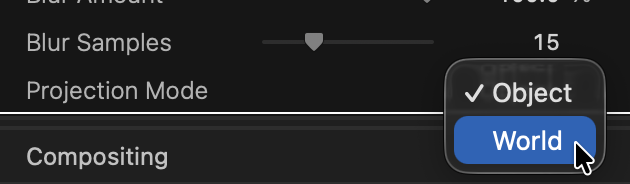
The `Projection Mode` parameter controls how a clip is drawn as it moves around
in 3D space. Since we want to pan around the clip in the 3D world (the camera
moves in 3D space), we want `World` projection.
For more about projection modes, see [Moving Objects](/guide/positioning).
>>> Set an initial 3D angle
Rotation Y controls yaw and Rotation X controls pitch. Adjust Rotation X and Y,
Position, and Scale to set an initial position in 3D space.
You may have to play around with it a little bit to get the exact effect you're
going for.
>>> Add a new 3D position keyframe
Move the timeline forward, set a new 3D orientation (position, rotation, and
scale), and you've created a 3D camera animation!
>>> Customize the animation using the curve editor
Change the curve shape or amount of easing to get different effects.
>>>